Mobile App Manual Testing: How to Run Sessions That Find What Scripts Miss
Phone bugs hide in calls, signal drops and upgrades. Run mobile app manual testing in timed sessions and log bugs a developer can reproduce on iOS and Android.

You are halfway through checkout when a call comes in. After you answer it and return to the app, the cart holds the same item twice. No script was waiting for that call.
A timed session with a goal catches that bug, and notes taken as you go turn it into a report a developer can reproduce on the first try. Here is how to run that session on a phone, whether you test full time or test your own builds between commits.
What you’ll learn
- What a person catches on a phone that a script does not
- How to run a timed session with a charter and a debrief
- Which phone settings and states to vary on purpose
- What to write down while you test
- How to log a bug a developer can reproduce
- Which mobile test automation fits a check once it repeats
What Does Manual Testing Catch on a Phone That Scripts Miss?
Mobile app manual testing means a person runs the app by hand on a phone, with no script, and judges what happens. A person catches what depends on the phone around the app. A script follows the path it was given, while a phone keeps changing the path.
| Area | Easy to miss in a script | How to provoke it by hand |
|---|---|---|
| Interruptions | A fixed path with no outside events | Take a call, lock the screen, or open another app mid-flow |
| Gestures | Exact taps at an even pace | Swipe fast and slow, start at the screen edge, long-press |
| System prompts | The prompt exactly as it looked last run | Deny, allow once, then revoke in Settings |
| Screens | One device size and one text size | Largest text, dark mode, a small phone, landscape |
| Network | A steady connection | Switch Wi-Fi to cellular mid-request, then go offline |
| Install state | A clean install every time | Upgrade over an older build that holds real data |
Each row also covers things a script cannot judge, such as a label clipped by large text or a button too close to the edge to hit with a thumb. The checks pass while the screen is wrong, and a person sees it at a glance.
How Do You Run a Manual Mobile Testing Session?
A session turns wandering around the app into work you can plan, review, and repeat. James and Jon Bach built session-based test management at Hewlett-Packard to manage testing by what testers do instead of by the documents they produce. On a phone, the same idea gives each hour of exploratory testing a goal, a clock, and a record.
A session is one charter, one clock, running notes, and a short debrief.
Run a Session in Five Steps
- Write the charter: One sentence naming the area, the risk, and what you want to learn. A charter that fits on a line keeps the session from drifting.
- Write down the starting state: Do it before the first tap. A bug you cannot trace back to a state is a bug you cannot reproduce.
- Start the clock: An hour is a workable length. When it ends, stop, even if the area feels unfinished, and let the notes say what is left.
- Vary one thing at a time: Change the state, the input, or the interruption, but never all three at once, so a failure points to its cause.
- Debrief: Spend ten minutes with a developer or teammate straight afterward. Cover the bugs found, the areas not covered, and the next charter.
Charters That Fit a Phone
- Interruptions: Explore checkout with calls, lock screens, and app switches to learn whether the order survives each one.
- First run: Explore a fresh install with permissions denied to learn whether a new user can reach the home screen.
- Upgrade: Explore an upgrade over an older build to learn whether saved data and settings survive.
What Should You Vary on Purpose During a Session?
A phone changes state all day, so a session needs deliberate variation. These are the dials worth turning, and most of the tools are already on the phone.
- Interruptions: Take a call, let a notification land, lock the screen and wake it, then switch apps and return. The question is always whether the app comes back where the user left it.
- Permissions: Deny a permission prompt, allow it once, then revoke it in Settings with the app open.
- Network: Move from Wi-Fi to cellular mid-request, go offline, and come back. Watch the recovery closely, and simulate the network conditions you cannot get at a desk.
- App state: Send the app to the background and return after a while. Android’s Developer options include Don’t keep activities, which destroys each activity as soon as you leave it, so every return tests whether the app restores its screen.
- Gestures: Swipe fast and slow, start from the edge, long-press, and rotate. Developer options also offer Show taps, a circle under each touch, and Pointer Location, which draws the path of the gesture and tracks its coordinates.
- Install state: Test a fresh install, then an upgrade over the previous build with real data in place.
- Display: Try the largest text size, dark mode, a small screen, and landscape.
Hand Off the Flows You Repeat
Bring a flow you retest every release to a demo.
What Should You Write Down While You Test?
Notes taken as you go are what turn a strange moment into a reproducible bug, because memory drops the step that mattered. Keep one running log per session and stamp each line with the clock time so it lines up with a recording.
- Path: What you did, in order, one action per line.
- Bug: What looked wrong, plus a note that you captured evidence.
- Question: Anything odd that may not be a bug yet.
- Setup change: Anything you changed mid-session, such as switching on airplane mode.
- Not covered: What you skipped, so the debrief knows.
Record the screen for the whole session when you can. An iPhone’s Control Center has a Record button that starts after a three-second countdown, and the Screen Recording button stops it, as Apple’s page on screen recording explains. On Android, switch on Show taps first so the video shows where each finger landed.
How Do You Log a Bug a Developer Can Reproduce?
A phone bug report has to carry the state of the phone, because the same steps can pass on one device and fail on another. Write each field so a developer who has never held your device can set up the same conditions.
| Field | What to write | Why a phone needs it |
|---|---|---|
| Build | Version and build number | The fix targets the build you tested |
| Device and OS | Model and OS version | Devices and OS versions behave differently |
| Starting state | Fresh install or upgrade, signed in or out, permissions granted or denied | The same steps act differently from another state |
| Network | Wi-Fi, cellular, or offline, and any switch mid-flow | A switch can fail where a steady link works |
| Steps | One action per line, from launch | A shortcut skips the state that mattered |
| Expected and actual | What should happen and what did | It separates a bug from a surprise |
| Frequency | Every time, sometimes, or once | It tells the developer how hard to chase it |
| Evidence | Screen recording and a screenshot | It shows the moment words leave out |
For the title, give the symptom and the event that preceded it, such as “Cart shows the item twice after returning from a call”. On Android, Developer options also offers Take bug report, which copies the device’s log files so you can share them. The Android team’s page on the bug report says it holds device logs and stack traces, which gives the developer something to read besides your description.
When the Bug Will Not Repeat
Go back to the notes and the recording, rebuild the starting state, and rerun the path one change at a time. Look at what the phone did just before the failure, such as a call, a network switch, or a return from the background, and repeat that event first. Write down every attempt, including the ones that pass, since a pattern only shows itself across the tries.
Turn a Bug You Found by Hand Into a Check That Repeats
Finding a bug takes one session, while rerunning the same checks every release is where manual hours drain, well past the point where manual testing stops scaling. Split the work by whether a check needs judgment.
- Keep by hand: Anything that needs judgment, such as whether a flow feels right, whether a screen looks wrong, and where a new feature is likely to break.
- Hand off: Steps you have run the same way on several releases, where the result is a plain pass or fail.
Which Mobile App Test Automation Fits the Check?
A check that is ready to hand off has two routes: a scripted framework, or a description of the flow. Scripted frameworks run fast and precisely, and someone on your team writes and maintains the code. Each platform has a native option, and one tool spans both.
| Tool | Platform | Fits a check that |
|---|---|---|
| Espresso | Android | Stays inside your app. Google’s docs say Espresso waits to act until its synchronization conditions are met, so the script needs fewer sleeps. |
| UI Automator | Android | Leaves your app for a system app, such as the Settings screen where you revoke a permission. It tests from outside the app’s process. |
| XCUITest | iOS | Drives an iOS app’s screens. UI tests are part of Apple’s XCTest framework for Xcode projects. |
| Appium | iOS and Android | Has to run on both platforms from one suite. Appium is open source and covers many app platforms, mobile among them. |
Every row is a script, so each one carries upkeep when screens change. The mobile test automation guide covers how to pick among them, and mobile regression testing covers why selectors break across devices.
Or Describe the Flow to Pie
Hand Pie the flow behind that bug, and our agentic testing platform turns it into a check you can rerun every release while the tester moves on to the next charter.
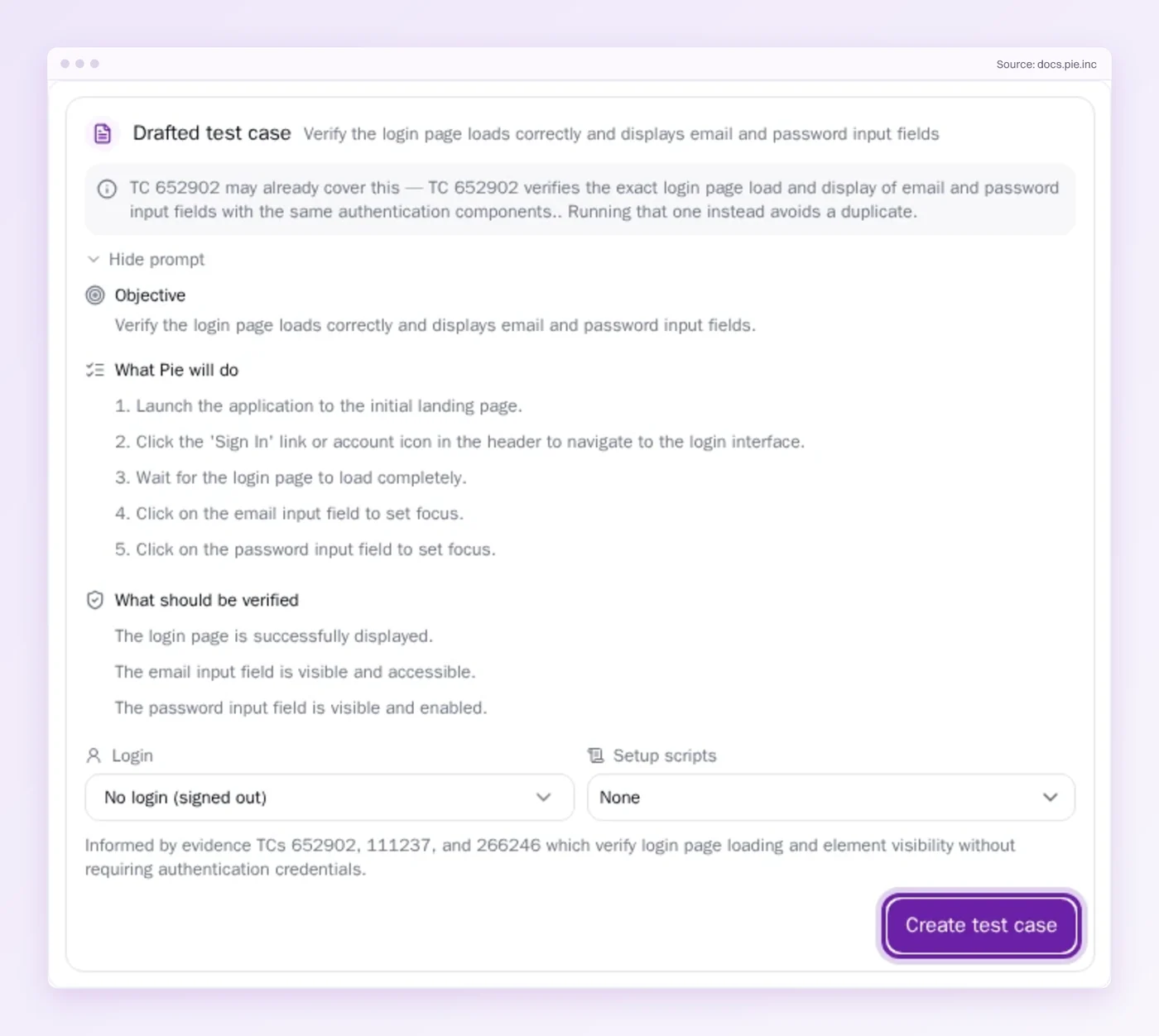
- Describe the flow: Tell Pie Chat what you just did in plain English. It explores the flow and drafts a test case with an Objective, What Pie will do, and What should be verified. You review the draft before anything runs.
- Skip the scripting: No scripts to write, no locators to break.
- Pick the devices: Name the iPhone, iPad or Android device and the OS version. Pie runs the check on simulators and emulators, with real devices available on demand.
Aim Human Hours at the Surprises
A phone gives a tester more surprises than any pipeline can script. There is the call, the dropped signal, and the old build carrying new data. A session with a charter, a clock, and honest notes turns each one into a bug a developer can fix.
The checks that stop surprising you belong somewhere cheaper. The rest are the reason a person holds the phone.
Keep Checking What You Found
See a tested flow turn into a check. Pie Chat drafts it for review.
Frequently Asked Questions
Spent a decade in B2B SaaS sales before building Pie. Now obsessed with helping engineering teams ship without the fear of breaking things. LinkedIn →