Mobile Application Test Automation: How to Start and Which Tool to Pick
Mobile app automated testing breaks when IDs change under a screen that works. Set it up in five steps and pick a tool by what it costs to maintain.

A resource ID is a string a developer typed. com.app:id/login_button sits in the view hierarchy where no user will ever see it, and it survives exactly as long as nobody renames it.
Most mobile application test automation is built on strings like that one. Rename one, and a working flow turns red with the button in plain view. Here is how to set it up so fewer of your red builds are about the test.
What you’ll learn
- What mobile application test automation is, and what to keep manual
- Why mobile automation fails more often than web automation
- Five steps to set it up, from the first flows to weekly triage
- How the main tools compare on speed and upkeep, from Appium to vision-based platforms
- How far autonomous testing goes today, limits included
What Is Mobile Application Test Automation?
Mobile application test automation, also called mobile app automated testing, is software running checks against a mobile app automatically, to confirm its flows still work on the devices and OS versions your users carry. It takes the repeated pre-release pass off your testers and frees them for the judgment work a script cannot do. Not everything belongs in it, though.
- Automate: The revenue flows you rerun before every release, such as login and checkout.
- Keep with people: Usability and exploratory sessions, plus hardware checks that need a real device.
The type of app you are testing also limits which tools can drive it. Mobile apps come in four kinds.
- Native: Built for one platform with that platform’s own SDK.
- Hybrid: Web code wrapped in a native shell.
- Web: A mobile-optimized site running in the device browser.
- Progressive web app: A web app that installs and works offline.
Some tools drive only one kind or one platform. Espresso sees only Android, and XCUITest only Apple’s platforms. Detox is built for React Native. Any answer to “which tool is best” starts with “what did you build.” The wider practice, manual passes and testing types included, has its own guide to testing mobile apps.
Why Mobile Automation Fails More Often
Mobile automation fails more often than web automation because mobile adds failure modes the web never meets. Three of them compound, and none is a discipline problem that better test hygiene would fix.
1. Device Fragmentation at Scale
Android runs on a long tail of device models, each with its own screen sizes and manufacturer skin. Samsung’s One UI behaves differently from stock Android, and Xiaomi’s HyperOS adds its own quirks.
Your test passes on a Pixel 8 and fails on a Galaxy S24, though the button is visible on both screens. It was recorded as an absolute XPath, a position in the view tree, and the tree is a different shape on the other phone.
2. OS Version Sprawl
iOS users move to new versions fast, as Apple’s own figures below show. On Android, your own install data decides how many older versions you support, and permission models and background limits shift from one release to the next.
Apple counts 79 percent of iPhones on iOS 26, measured across devices that transacted on the App Store on June 7, 2026. Google’s distribution dashboard publishes no equivalent share for Android versions, which leaves the cumulative API-level chart in Android Studio and your own install data as the closest views you get.
A test that taps Allow on the notification prompt passes on Android 13, where POST_NOTIFICATIONS turned that prompt into a runtime permission, and fails on Android 12, where the prompt never appears. Same code, different OS behavior, and the failure looks exactly like a bug until you dig in.
3. Selector Brittleness
Selector brittleness is the root problem beneath the other two. Traditional mobile automation finds elements through selectors such as an XPath expression or a resource ID. Every one of those is something a developer set, and none of them is what a user looks at.
We hit a harder version of the problem building Pie’s mobile agent. We started on the view hierarchy and accessibility identifiers. On React Native apps the hierarchy can stop a few levels down, so many elements never get an identifier to select at all. We moved the agent to reading the screenshot instead.
Some teams keep identifiers clean, usually because the engineers who rename them also write the tests. Where app code and tests have different owners, renames slip through, and the week shifts from new coverage to locator repair. The same coupling is why mobile E2E tests flake long before anyone blames the app.
How Do You Automate Mobile Application Testing?
You automate mobile application testing in five steps, and the fifth is the one that tells you whether the other four work. Two decisions sit underneath all of them, the framework that drives the app and the devices it runs on.
- Critical journeys first: Pick the three to five paths that make or lose money, usually login and checkout, before chasing coverage. Add error states and interrupts such as permission prompts once those hold.
- Framework and devices: Choose the framework by app type and by who writes the tests, using the comparison below. Then decide where runs execute. Emulators and simulators are fast enough for every commit, and real devices belong before release.
- Stable element strategy: Write assertions against what appears on screen. If your tests use selectors, prefer accessibility IDs or React Native
testIDs over absolute XPath. Detox’s matcher docs make the same case for unique IDs over text, label and index matching. - CI on every commit: Run across a device set weighted by your own install data. The iOS and Android pipeline is its own job, covered step by step in running mobile app tests in CI/CD.
- Weekly triage: Label every failure as an app bug or a test break, and keep the tally. When repair takes more of the week than new coverage, change the approach before you fix another test.
An automation lead running about 500 iOS and Android regression tests told us every release starts by sorting what broke in the app from what only needs a script update. The tally makes that sort visible.
Without the tally, steps one to four can all be in place and a red build still tells you nothing, because it could mean either. A few weeks of tallies show whether your failures come from the app or from the test code, and that answer picks your row in the routing table below.
Mobile Test Automation Tools, Compared
There is no single best mobile test automation tool. The right one depends on your app architecture and on who writes the tests, and each option trades speed against upkeep differently. The table is the fast version, and the sections after it explain each.
| Tool | Best For | Speed | Maintenance Burden |
|---|---|---|---|
| Appium | Cross-platform teams needing max flexibility | Slower (extra network hop) | High (selector upkeep) |
| Espresso / XCUITest | Native teams that want raw speed | Fast (no automation server in the loop) | High, and doubled across platforms |
| Maestro | Teams wanting simple, readable tests | Fast to iterate (built-in waits, no sleeps) | Moderate (text and ID selectors) |
| Detox | React Native apps | Fast (automatic synchronization) | Moderate (testIDs kept in app code) |
| Low-code with self-healing | Mixed-skill teams that record tests | Depends on the engine underneath | Low to moderate (in Katalon, a failed locator heals mid-run and approval saves the fix) |
| AI-native, plain English (testRigor, Momentic) | Teams that want tests written in plain English | Varies by tool | Low to moderate (no XPath to maintain, elements re-found when the UI changes) |
| Vision-based / agentic (Pie, Google’s Journeys preview) | Teams whose real cost is maintenance | Slower per step in Pie (a model reads each screen) | Low to moderate (supported tests are authored without maintaining selectors; a redesign can mean editing or regenerating tests), and findings need review |
Appium
Appium drives iOS and Android from one client API by implementing the WebDriver protocol. It is open source and actively maintained, with Appium 3.8.0 published in September 2026. Every command crosses an HTTP client-server boundary that native frameworks skip, which adds execution time and one more layer to debug when a test fails.
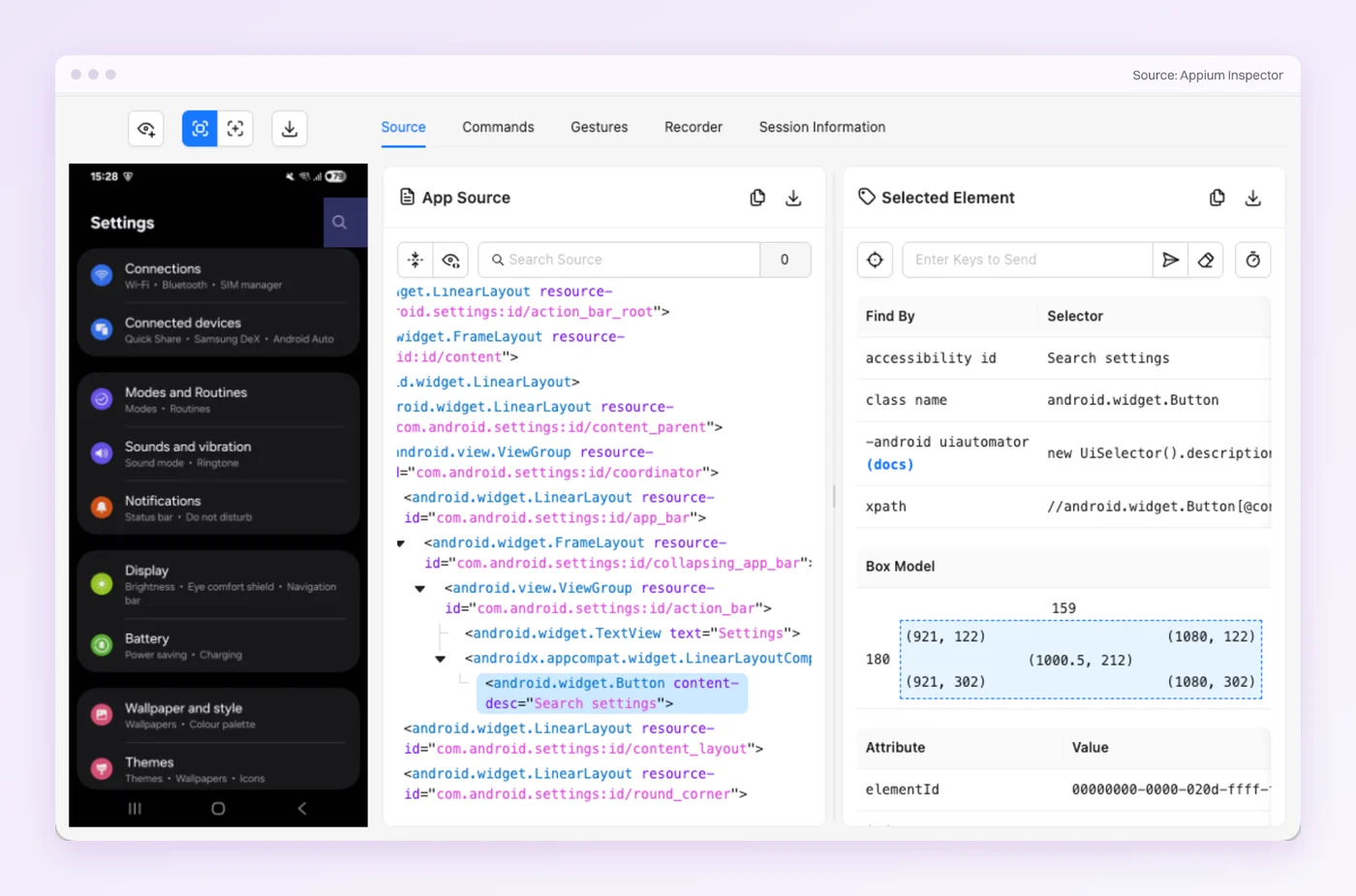
Appium gets weighed against Selenium, though the two do different jobs. Selenium automates web browsers, and Appium carries the same WebDriver protocol to native and hybrid apps that Selenium alone cannot drive. They overlap only on a mobile website in a device browser, the case Appium vs Selenium works through in full.
Most Appium locators point into the view tree, though an optional images plugin can match a template image on the screen instead. Its reach is why teams stay on it, and locator upkeep is why some start comparing Appium alternatives.
Espresso and XCUITest
Espresso is Google’s framework for Android. XCUITest is Apple’s, and it covers iOS along with Apple’s other platforms. Espresso waits until the app’s message queue and idling resources are idle before each action. XCUITest drives the app from a separate test runner through a proxy object, XCUIApplication. Neither puts a remote automation server in the loop, which is where their speed comes from. The cost is two suites, with every flow written twice.
Maestro
Maestro is the simplicity-first entrant. Its YAML flows read like a checklist, and it waits for the screen to settle on its own, so you rarely write a sleep. Under the YAML, tapOn: Login is a selector that Maestro reads as a text match against the accessibility tree. Visible text sits closer to what a user sees than an XPath does, so a refactor rarely touches it. A copy change or a new language does, which is why Maestro’s docs point localized apps to IDs.
Detox
Detox is the React Native specialist. It synchronizes with the app automatically, waiting on network calls and animations instead of making you sprinkle sleeps through the suite. It matches elements by the testID your developers keep in the app code, which holds up well when developers treat those IDs as part of the test contract. Its setup docs rule out Android apps that are not built with React Native, though native iOS apps are expected to work.
Low-Code and Self-Healing Platforms
Low-code tools such as Katalon let testers record or describe a test, and several add self-healing locators on top. When a locator breaks mid-run, Katalon Studio tries the other locators it knows for that object, and if one works the test keeps running. Approval comes afterwards and only saves the working locator as the new default.
Its docs also list image and Smart Locator strategies, and its AI self-healing can read screenshots and the accessibility tree. The same docs warn that healing on wait and verify steps can produce false positives. For a team that already records its tests, it cuts repair work without changing tools.
AI-Native and Vision-Based Platforms
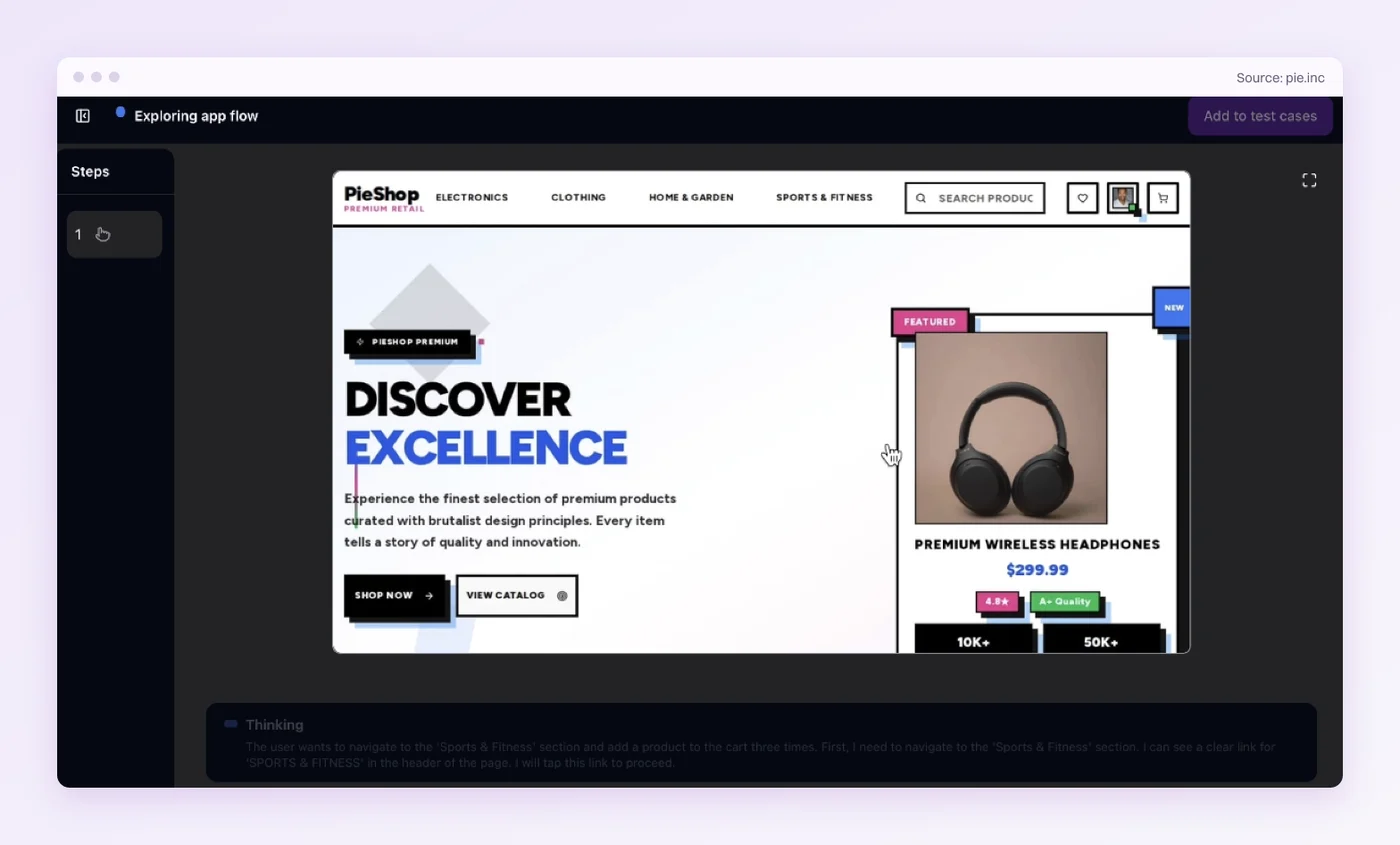
Vision-based platforms find the button on the rendered screen, so no step you write names a locator. Pie, an agentic testing platform, is one of them, and it also runs agents that explore the app’s reachable supported flows and draft the tests.
It has company. Two AI-native peers, testRigor and Momentic, take tests in plain English and cover iOS and Android apps. Google’s Journeys preview, covered below, brings vision-based testing into Android Studio. Where a model reads each screen, as Pie’s agents do, the trade is speed per step and some determinism in exchange for less upkeep.
Tired of Fixing Selectors?
Hand Pie your next build. Keep your week for the app.
How Vision-Based Testing Finds a Button
AI is on most testing labels now, and the label says nothing about how a test finds a button. The concrete difference is one line of intent. Traditional automation says “find the element with resource-id com.app:id/login_button and click it.” Vision-based testing says “find the button that says Login and click it.” One is bound to code. The other is bound to what the user sees.
It is the difference between handing someone GPS coordinates and telling them to look for the blue door. The coordinates are more precise, right up until the building moves.
Pie works this way. Execution is vision-first: its agents work from screenshots of your iOS or Android app, so your team can author supported tests without maintaining selectors.
Google now previews the same idea inside Android Studio, where its Journeys feature uses the vision and reasoning of AI models to navigate and test an app from plain-language steps.
No Selectors to Maintain
When developers rename a component or restructure the view hierarchy without changing what renders, a vision-based test has nothing to update. It reads the rendered output. A rename that leaves the screen alone is invisible to it.
Self-Healing When a Button Moves
A button that moves from the top of the screen to the bottom breaks an absolute XPath, because the path encoded its old place in the tree. A vision-based test can adapt. It looks for “Login,” and it can find the button where it now renders. A redesign that changes what the button says or does is different, and the test may need an edit.
Cross-Platform Without a Second Selector Set
“Tap the Login button” reads the same whether that button is an iOS UIButton or an Android MaterialButton. Nothing in the instruction is platform-specific. You still run and validate it on each platform, because flows and gestures differ between them. What drops out is the second set of selectors, the part that used to double the upkeep.
What It Still Gets Wrong
Reading the screen brings a person’s blind spots with it.
- Look-alike controls: If a dropdown is styled exactly like a text field, the agent tries to type into it, the same mistake a new user makes.
- Invisible state: A screen-reading test verifies only what a user can see, so a database write or an API contract needs its own layer.
- Speed: Each step waits on a model reading the screen, which makes a run slower per step than an in-process framework.
Side by side, each model wins in different places. The difference you feel most is the one at six in the evening, staring at a red build you did not expect.
| Aspect | Selector-Based Automation | Vision-Based Testing |
|---|---|---|
| How It Finds Elements | XPath, resource IDs, accessibility labels (Appium’s optional images plugin also matches template images) | Visual recognition, the way a person reads a screen |
| When UI Changes | Tests break unless a healing layer finds a replacement locator | Tests can adapt to a moved or restyled element |
| Device Fragmentation | Different element hierarchies across devices cause failures, and suites can run on real devices and device clouds | No per-device selectors, so the same test runs on each device and OS version you pick |
| Maintenance Burden | UI refactors feed a repair queue | No locators to repair in supported tests, and you review the findings |
| Speed per Step | Fast, especially native frameworks running beside the app | Slower, because a model reads each screen |
| Cost to Run | Open-source frameworks are free, and the cost is engineering time | Commercial platforms, Pie included, charge for the service |
| Determinism | The same script takes the same steps every run | Stochastic, so the same instruction can take a different path |
| What a Failure Means | Could be a bug, could be a renamed ID. You open it to find out | A user-visible flow did not complete, or the agent misread a step. A renamed ID is off the list |
The last row decides whether anyone trusts the suite. When a red build is as likely to mean “someone renamed a component” as “checkout is broken,” people stop reading the report.
Can Mobile Testing Be Truly Autonomous?
Partly, and the split is more useful than a yes or a no. The work divides into two layers with different owners.
- Mechanical layer: Agents explore the reachable supported flows of an app they have never seen, given working credentials for anything behind a login. They draft tests for what they find and run them.
- Judgment layer: Your team decides whether a finding is a real defect or an artifact of a flow that behaved slightly differently this time. When the app changes on purpose, your team also edits or regenerates the tests it affected.
The judgment layer exists because these systems are stochastic. The same instruction does not execute identically twice, so a run produces findings to judge instead of a verdict to accept. In Pie, customers reject findings that are not real defects.
A platform promising determinism on every app, out of the box, is making a promise it cannot keep. TLDR, autonomy is real at the mechanical layer and supervised at the judgment layer. Let the agents explore and run. Keep your team on the verdict.
Which Approach Fits Your Team?
The right answer falls out of one question. Where is your time going? Authoring and maintenance pull toward different tools, and it is easy to choose for the wrong one, because authoring is the cost you feel first.
| If This Describes You | Start Here | Why |
|---|---|---|
| React Native app, engineers writing their own tests | Detox | Built-in synchronization replaces hand-written waits |
| Separate native iOS and Android apps, specialists on both | Espresso + XCUITest | Native speed, at the cost of two suites |
| One cross-platform suite, unusual flows, in-house automation engineers | Appium | Wide driver and plugin ecosystem for unusual flows |
| QA is mostly manual today, and testers want flows they can read and write | Maestro | YAML flows are reviewable by people who do not write test code |
| Testers record tests today and want a broken locator healed during the run | Low-code with self-healing | In Katalon, runtime healing tries other known locators, and approval saves the fix |
| The week goes to repairing selectors, and the team wants to write tests in plain English | AI-native (testRigor, Momentic) | Plain-English steps with no XPath to maintain, and elements re-found when the UI changes |
| You want coverage before writing a single test | Pie | Agents explore the app’s reachable supported flows and draft the tests, and you can author supported tests without maintaining selectors |
If authoring is the cost, a native or cross-platform framework is fine, and you can stop reading comparison posts. If maintenance is the cost, look past selectors.
Not every team arrives with a suite to repair. Fi, which makes smart GPS collars for dogs and cats, came to Pie from a manual release pass that left room for little beyond core smoke tests. Their Director of Mobile Engineering put the fit this way:
“The way that Pie set up has allowed Fi to work alongside our development process. We didn’t have to change how we did things.”
— Philip Hubert, Director of Mobile Engineering, FiCount Your Red Builds
Mobile tests fail more than they should because they are bound to the tree behind the screen. A renamed ID or a reshuffled hierarchy lands in the same queue as a real bug, and the two look identical until someone opens them.
The fix is to separate those failures, then remove the class you can remove. Pie works from the rendered screen, so a rename that leaves the screen alone has nothing to break. What reaches your team is whether the app did what the user needed.
Go open last week’s red builds and count how many were the app. Whatever that number is, it is the only measure of your suite worth arguing about.
Stop Maintaining Selectors
Upload a build to Pie. Spend the week shipping instead of repairing tests.
Frequently Asked Questions
Start with the three to five flows that make or lose money, usually login and checkout. Choose a framework that fits your app type, and write tests against what the user sees.
Run them in CI on every commit. Label each failure as an app bug or a broken test.
Selenium automates web browsers. Appium carries the same WebDriver protocol to native and hybrid apps on iOS and Android, so Selenium alone cannot drive a native app.
The two overlap only on a mobile website opened in a device browser, which Appium can also handle.
No single tool wins. Espresso and XCUITest suit native teams that want speed, and Appium suits teams that want one suite for both platforms. Maestro's YAML flows are the easiest of the frameworks to read, and Detox is built for React Native.
If repairing tests eats your week, look at a vision-based platform.
Most of the repeatable work, yes. Regression flows and smoke checks you rerun before every release are the best candidates.
Keep usability and exploratory testing with people. Check hardware behavior such as the camera or Bluetooth on real devices before release.
Not for every run. Emulators and simulators are cheap to start in CI, and they cover most functional checks across OS versions on every commit.
Real devices earn their place before release, for behavior a virtual device only fakes, such as cellular radio or sensor input.
It can. It looks for the Login button the way a person does instead of through a selector, so a moved or restyled button can often still be found.
A larger redesign, or a label whose meaning changes, can mean editing or regenerating the test.
Yes. Pie runs iOS apps on iOS simulators and Android apps on Android emulators, with real devices available on demand. Tests are written in plain English about what a user sees, so no step names a UIButton or a MaterialButton.
You still validate each flow on each platform, because the flows themselves can differ.
No. Keep your framework tests for fast checks close to the code, and run Pie beside them for the user flows across the app.
A good first target is the flow your suite covers worst, often the one that breaks whenever the UI changes.
Eight years building search and delivery systems at Amazon. The kind of scale where flaky tests block billion-dollar releases. Now CTO at Pie, building AI agents that adapt when your UI changes. LinkedIn →